
AViCAD Flex Licensing Guide
Move Your License. Share Your License. Work Anywhere.
AViCAD Flex Licensing is a low-cost, optional add-on for AViCAD Perpetual licenses that allows you to share your license across users and computers via a secure cloud service.
No license server. No complicated network setup. Simply acquire a license when you need it and release it when you’re finished.
Note: Flex Licensing is available only with AViCAD Perpetual licenses and is an optional add-on purchased separately.
Key Benefits
✔ Share licenses between users
✔ Move licenses between computers
✔ No license server required
✔ Works from the office, home, or remote locations
✔ Affordable alternative to traditional network licensing
Quick Start
- Install AViCAD 2027.
- Activate your License ID online.
- Follow prompts to register
- Receive your new AViCAD Serial Number.
- Register AViCAD using the new Serial Number.
- Start working.
That’s it. Other settings simply give larger offices more control over how licenses are shared.
Before You Begin
You’ll need:
✔ AViCAD 2027 installed (release 2027 is required)
✔ Your License ID from your order
✔ An internet connection for activation
Setup usually takes about five minutes.
Understanding the Terminology
License ID
Your License ID is only used once. It creates your Flex Profile and generates your AViCAD Serial Number. After that, you’ll normally use your AViCAD Serial Number—not the License ID.
AViCAD Serial Number
Generated after activating your License ID.
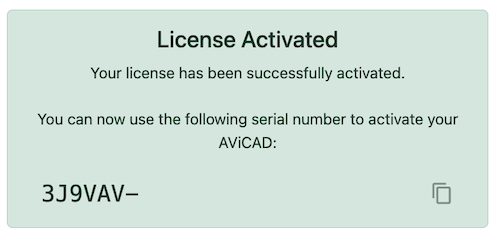
Begins with 3J9VAV- and is used to activate AViCAD on all computers sharing the key.
Flex Profile
Your online account used to manage your Flex licenses.
Flex Dashboard
The website for managing your License IDs, Serial Numbers, passwords, and other Flex settings. This is typically managed by the owner or IT.
Register Your License
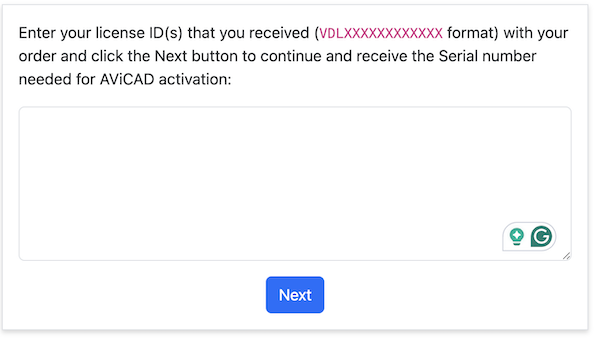
Step 1 – Enter Your License ID
Go to:
https://flexible-license.avicad.oemcad.com/activate
Enter the License ID included with your order.
Step 2 – Create Your Flex Profile
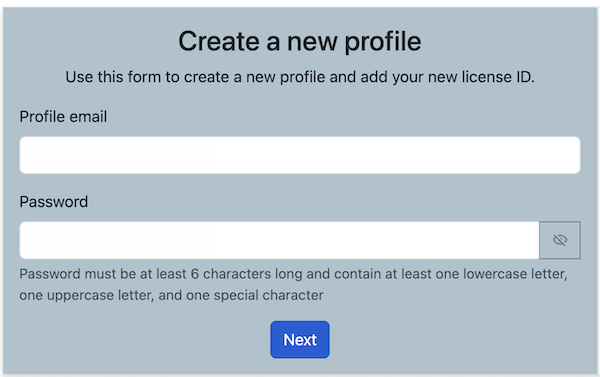
If this is your first Flex license, create a new Profile using your email address and password.
These credentials will also be used to sign in to the Flex Dashboard.
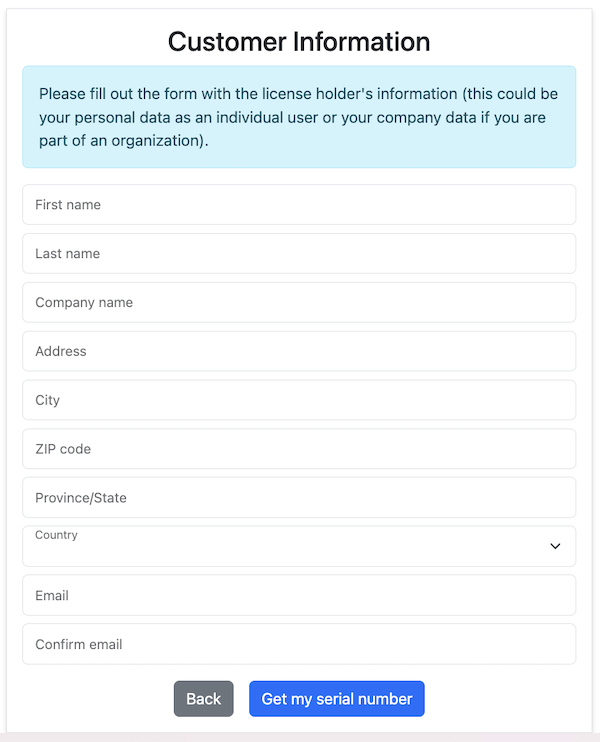
Step 3 – Enter Your Customer Information
Complete the form and click Get my serial number.
Step 4 – Receive Your AViCAD Serial Number
Your new AViCAD Serial Number will now be displayed.
Copy this number—you’ll use it to activate AViCAD.
Activate AViCAD
Open AViCAD and choose:
Help → Register AViCAD
Paste your new AViCAD Serial Number.
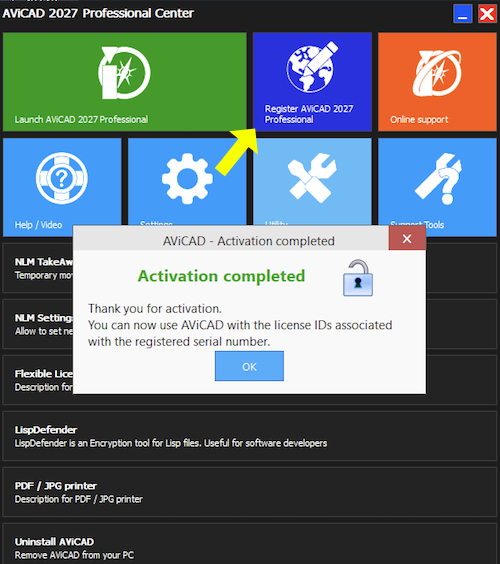
If the Serial Number has already been copied, AViCAD will detect it automatically.
Choose Yes to use the detected Serial Number.
Once activation is complete, AViCAD is ready to use.

Using the Flex Dashboard
The Flex Dashboard is your online control center for Flex Licensing.
The Flex Dashboard is not your order history or customer account. It is a separate website used solely to manage Flex licenses.
From the Dashboard you can:
— View the License IDs you have activated
— View your Serial Numbers
— Create additional Serials if needed
— Add descriptions
— Password protect Serials
— Configure automatic license release
— Move License IDs between Serials (when applicable)
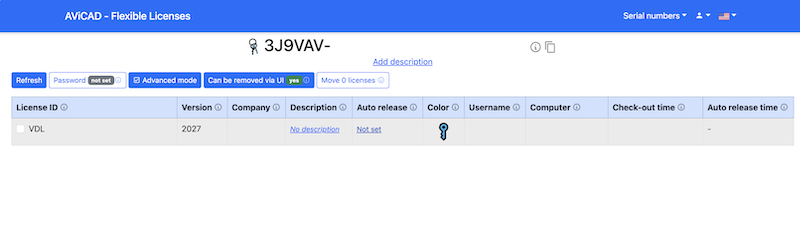
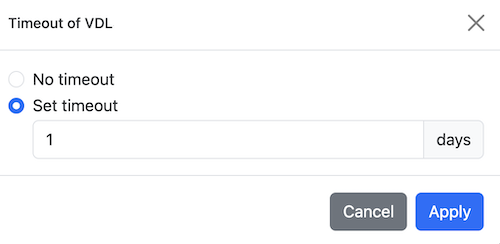
Automatic License Release
From the dashboard, each License ID can optionally be configured to automatically return to the available pool after a specified number of days.
This is useful if someone forgets to release a license before leaving the office or going on vacation.
Using the Flex License Manager
The Flex License Manager is built into AViCAD and allows you to acquire, release, and manage your Flex licenses.
Open it from:
Help → Flexible License Manager

Understanding the Buttons
Activate License
Registers AViCAD on your computer using your Flex Serial Number (beginning with 3J9VAV-). This is normally only done once after installation.
Acquire License
If a license is available, AViCAD opens normally. If all licenses are already in use, you’ll simply wait until one becomes available.
Change License
Lets you switch to another available Serial Number if your Flex Profile contains more than one.
Most users will never need this option.
Release License
Returns the license to the Flex system so another computer or user can immediately acquire it.
Think of it like returning a library book so someone else can check it out.
Default Settings
For individual users and most small offices, the default settings are sufficient.
By default AViCAD will:
— Automatically acquire a license when one is available.
— Ask whether you’d like to release the license when closing AViCAD.
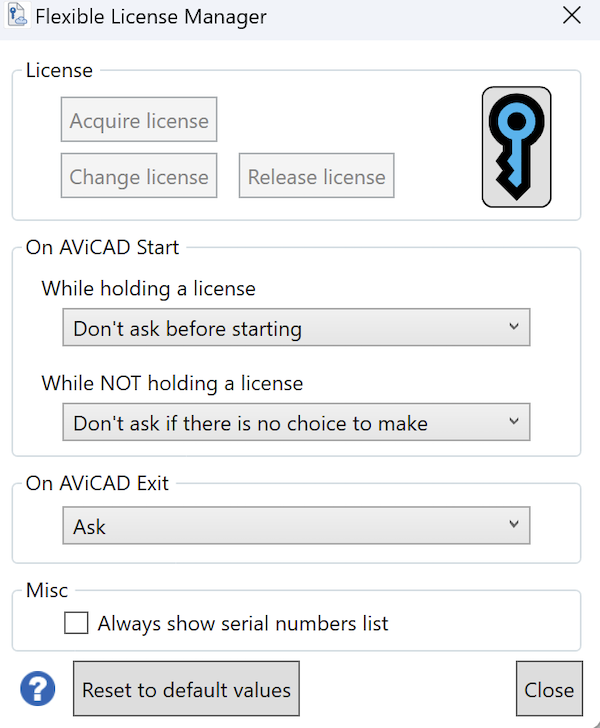
Most users never need to change these settings.
Startup Options
If your company uses multiple Serial Numbers, you can choose to display the Serial Number list each time AViCAD starts.
Enable:
— Ask before starting AViCAD
— Always show Serial Numbers list
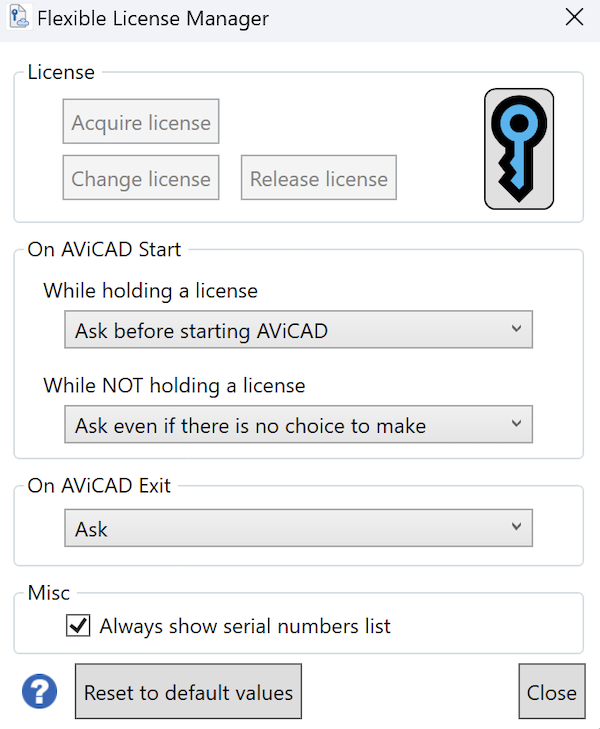
The next time AViCAD starts, simply choose the Serial Number you’d like to use.

Exit Options
You can choose what happens when AViCAD closes.
Ask (Default)
AViCAD asks whether you’d like to keep or release the license. This is the recommended setting for most users.
Automatically Release
The license is automatically returned whenever AViCAD closes. This is useful if you regularly move between computers.
Keep License
The license remains assigned to your computer until you manually release it.
Internet Connection
An internet connection is not required while you’re actively using AViCAD. It is only needed when:
— Activating your License ID
— Acquiring a license
— Releasing a license
— Managing licenses through the Flex Dashboard
Once a license has been acquired, AViCAD can continue running without maintaining a constant internet connection.
Common Examples
Single User
John works in the office during the day and from home in the evening.
Before leaving the office, he releases his license.
When he gets home, he acquires the same license.
Result:
✔ One user
✔ Two computers
✔ One Flex-enabled AViCAD license
Small Office
A company owns three Flex-enabled AViCAD licenses.
AViCAD is installed on ten office computers.
One employee takes a license home, leaving two licenses available for anyone else in the office.
As users finish working, they release their licenses so other employees can acquire them.
Result:
✔ AViCAD installed on ten computers
✔ Three users can run AViCAD at the same time
Multiple Departments
A company has separate Drafting and Engineering departments.
Each department uses its own Serial Number.
The Engineering Serial is password protected through the Flex Dashboard.
Drafting users cannot acquire Engineering licenses, keeping the two departments separate while still using the same Flex Profile.
Frequently Asked Questions
Do I need a license server?
No. Flex Licensing uses a secure cloud licensing service, so no local license server is required. An internet connection is only needed when acquiring or releasing a license.
Can AViCAD be installed on multiple computers?
Yes. Install AViCAD on as many computers as needed. The number of simultaneous users is limited only by the number of Flex-enabled licenses you own.
Can I move a license between computers?
Yes. Release it from the current computer, then acquire it on another.
Can I transfer a license remotely if I forgot to release it?
Currently, a license must be released from the computer currently using it before it can be acquired elsewhere.
Do I need to change the Flex License Manager settings?
Usually, the default settings work well for most users. Advanced options are mainly intended for offices with multiple Serials or shared licensing requirements.