
If you’re replacing a computer, reinstalling Windows, recovering from a hard drive failure, or moving AViCAD to another computer, we’re happy to help.
Before contacting us, please locate your Serial Number. You can usually find it by typing PKSER in AViCAD or by checking your original registration email, invoice, or purchase confirmation.
When contacting us, please include:
✓ Serial Number (if available)
✓ AViCAD version (choose Help then About)
✓ Approximate purchase date or invoice number
✓ Reason for the transfer request
✓ Whether the original computer is still available
Before You Begin
Make sure you know which type of AViCAD license you own and have your Serial Number available.
Not sure which license type you have? Contact us with your Serial Number or invoice number, and we’ll help identify it.
Single User License (Perpetual or Subscription)
Moving AViCAD To Another Computer
If your old computer is still working, you can usually move your license yourself.
Important: AViCAD licenses may be moved between your computers, but ownership of the license cannot be transferred to another user, company, or organization.
Releasing An AViCAD License Before Moving To A New Computer
AViCAD 2025 And Newer
If your original computer is still available, the easiest way to move your license is to release it before installing it on the new computer.
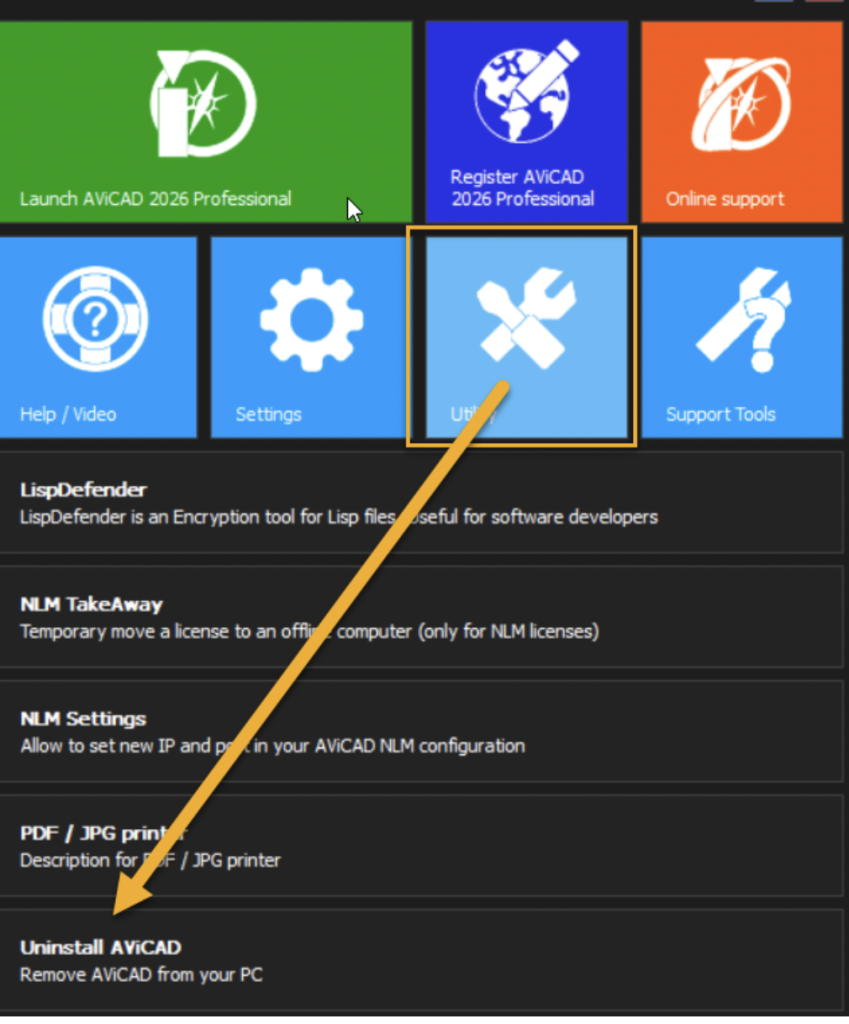
- Open AViCAD Center from the Windows Start Menu.
- Select Utilities.
- Choose Uninstall AViCAD.
- Follow the prompts and choose the option to release the license when requested.
- Install AViCAD on the new computer and activate it using your existing Serial Number.
Older AViCAD Versions
Older versions of AViCAD may not include the license release option.
Before uninstalling, type:
PKSER
Make note of your Serial Number.
You can also locate the Serial Number in your original registration email.
After removing AViCAD from the old computer, install it on the new computer and attempt activation using the same Serial Number.
If activation fails, please contact us using the form below.
Replacing A Computer Or Reinstalling Windows
If the original computer is still available, uninstall AViCAD and release the license before activating on the replacement computer.
Hard Drive Failure Or Computer Crash
If the original computer is no longer accessible, simply install AViCAD on the replacement computer and attempt activation normally.
If activation fails, contact us using for on this page and we can assist with resetting the activation.
Replacing A Hard Drive Or SSD
If you clone your existing drive to a new SSD or hard drive, AViCAD may require reactivation the next time it starts.
Simply reactivate the software using your existing Serial Number. If activation fails, contact us using the form provided below.
Can’t Find Your Serial Number?
If AViCAD is still running on the original computer, type:
PKSER
.. in order to display your Serial Number and license information.
If the original computer is no longer available, check your registration email, invoice, or contact us.
DIY License Transfer
If you still have access to your old computer, you may be able to move your license without contacting us.
- Type PKSER and make note of your Serial Number.
- Release the license (for AViCAD 2025 and newer) or uninstall the software (older versions).
- Install AViCAD on the new computer.
- Activate using your existing Serial Number.
If activation fails, use the form below and include your Serial Number, AViCAD version, and reason for the transfer.
Flex License
Flex Licensing is available for AViCAD 2027 Perpetual licenses with the optional Flex add-on.
It allows a single AViCAD seat to be transferred between users and computers through a simple cloud-based process.
Only one computer can use the license at a time.
To move a Flex License, simply choose the transfer option from the computer currently using the license. The destination computer can then accept the transfer and begin using AViCAD.
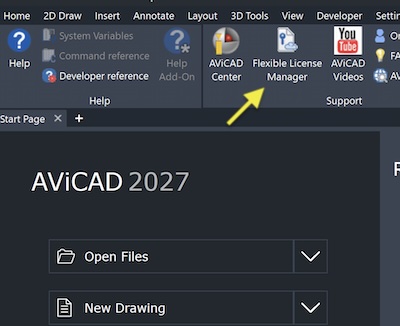
No license server or additional software is required.
Note: Flex License transfers must currently be initiated on the computer that is actively using the license.
Network License
A Network License allows multiple users to share a pool of licenses across a network.
How A Network License Works
A Network License works much like checking out a library book.
When a user starts AViCAD, a license is checked out from the server and reserved for that user. When AViCAD is closed, the license is returned and becomes available for someone else.
For example, if your office has 5 Network Licenses, AViCAD can be installed on 50 computers, but only 5 users can run the software at the same time.
Moving The Network License Server
If you are replacing or moving your Network License Server, the licenses should first be released from the existing server before being activated on the new server.
- Open the NLM Server Administration Panel on the existing server.
- Select the Migration tab.
- Select the licenses you wish to move.
- Click Release Selected Licenses.
- Activate the licenses on the new server.
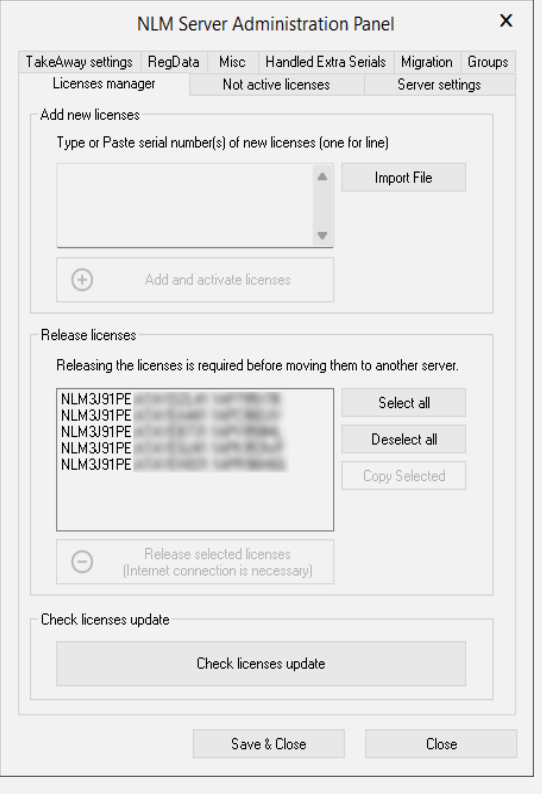
Important: The existing server must be connected to the Internet to perform the release automatically.
If the original server is no longer available or Internet access is not possible, please contact support for assistance.
Installing A New Workstation
If you are simply installing AViCAD on another workstation, install the software normally and connect to your existing Network License Server during activation.
Most users only need to install AViCAD and reconnect to the existing server.
Still Need Assistance?
Most license transfers can be completed quickly once we verify your license information.
If you’re unable to activate AViCAD, moving to a new computer, recovering from a hardware failure, or need help identifying your license type, please contact us and include:
✓ Serial Number
✓ AViCAD version
✓ Purchase date or invoice number
✓ Description of the issue
✓ Whether the original computer is still available